![taxtraders-black-1.png]](https://knowledge.taxtraders.co.nz/hs-fs/hubfs/taxtraders-black-1.png?height=28&name=taxtraders-black-1.png)
To find it, log in to the Tax Traders portal and go to Settings, then Manage access. If you belong to more than one branch, each branch has its own tab.
The page has two sections, Permissions and Manage access. You can collapse or expand each one.
Roles and permissions
There are four roles. The Permissions table shows what each role can do, and your own role is highlighted in purple. Hover over any permission to see what it covers. 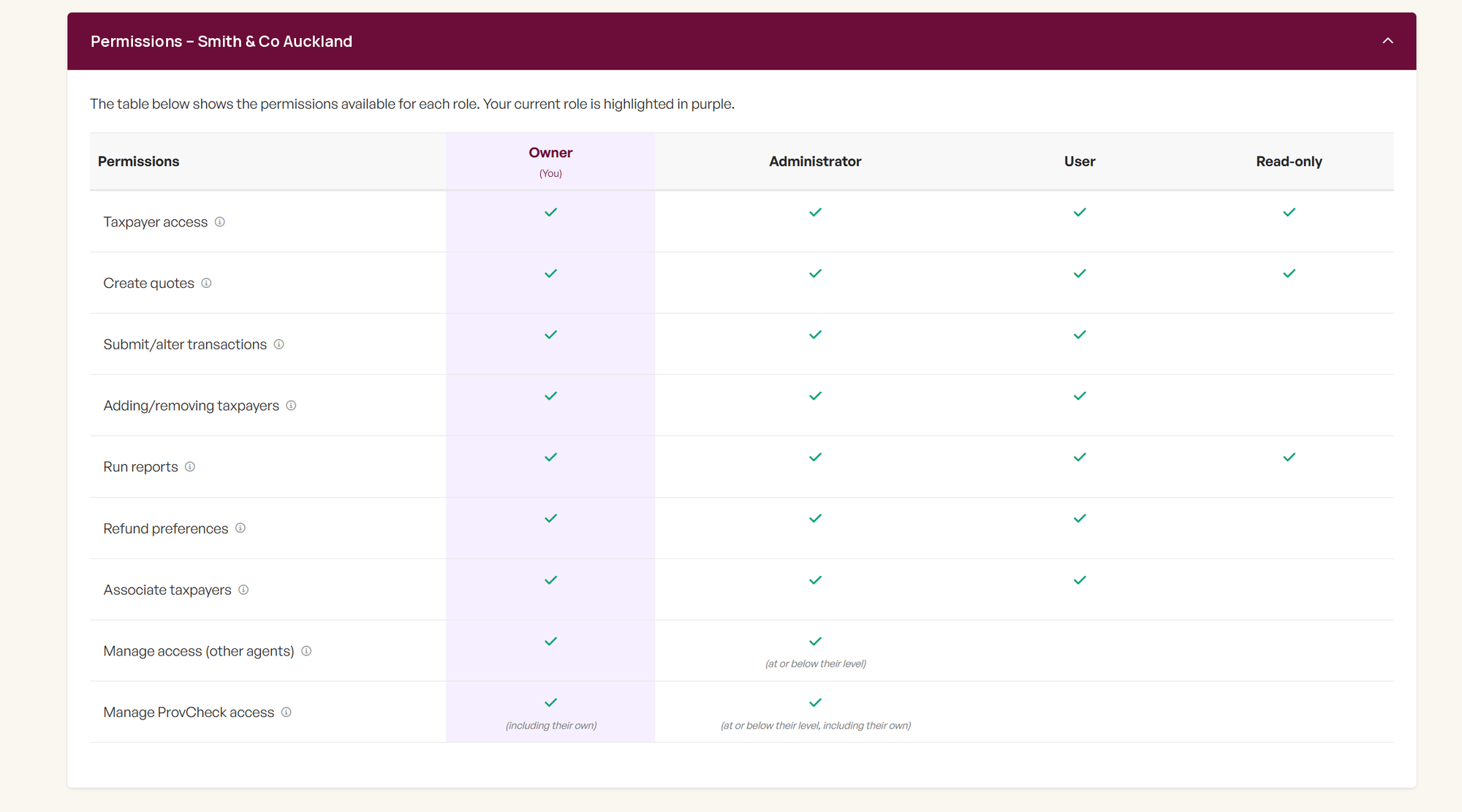
| Role | Summary |
|---|---|
| Owner | Full access, including managing everyone in the branch |
| Administrator | Full access, and can manage team members at or below their own level |
| User | Works with the firm’s taxpayers, but can’t manage other team members |
| Read-only | Can view taxpayer accounts, create quotes and run reports, but can’t make changes |
Contacts aren’t shown on this page. They only receive notifications for taxpayers and can’t log in, so you’ll still find them under Taxpayer settings for each taxpayer.
Who can see what
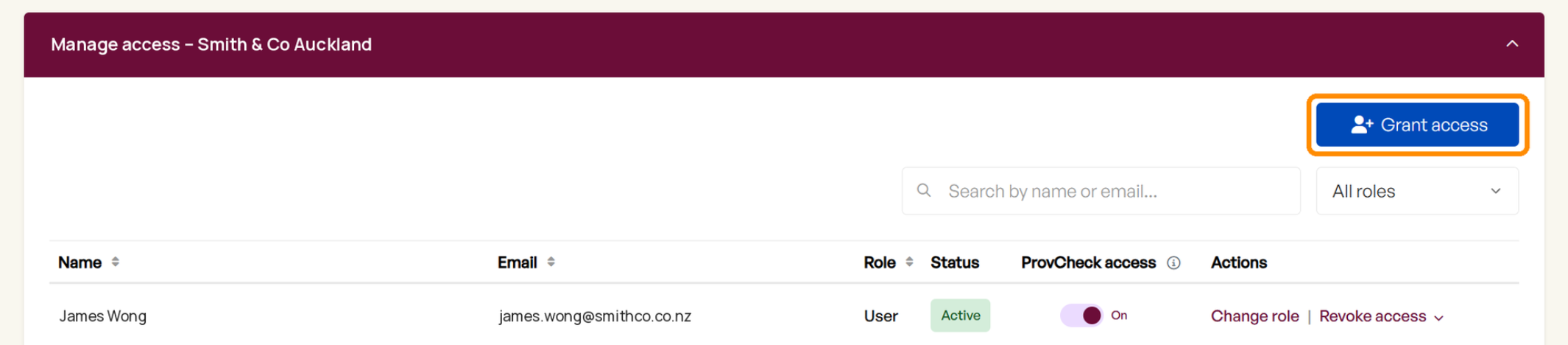
- Owners and Administrators see every team member and any pending invitations, and can add, change and remove access.
- Users and Read-only users can see every team member but can’t make any changes.
You can search by name or email, filter by role, and sort the list.
Adding a team member
- Click Grant access.
- Enter their work email address and choose their role.
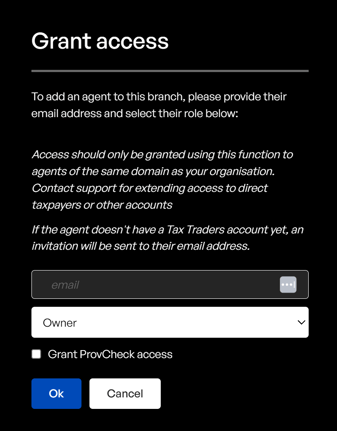
- Click Confirm.
If they already have a Tax Traders account, they get access straight away and appear in your list as Active.
If they don’t have an account yet, we email them an invitation to create one. They’ll appear in your list with a Pending invitation badge, and hovering over the badge shows who invited them and when. Once they register, they automatically get the role you chose.
Good to know:
- Invitations last 30 days. If they don’t register in time, you’ll need to invite them again.
- The email must match your firm’s domain. For example, an @yourfirm.co.nz address. If someone needs access with a different email, please contact us.
- Administrators can only give roles at or below their own, so they can’t add an Owner.
- Changed your mind? Click Revoke invite next to a pending invitation, and the link will no longer give them access.
Changing someone’s role
Use Change role next to the team member’s name. Owners can change anyone’s role. Administrators can only change roles at or below their own. 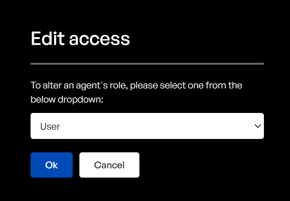
Removing a team member
Click Revoke access next to their name and choose one of two options: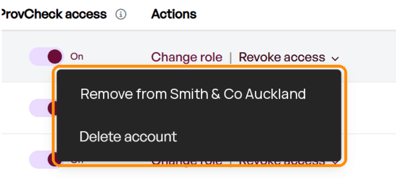
- Remove from [firm name] removes them from this team only. They keep their Tax Traders account and any access they have to other teams. We’re notified automatically.
- Delete account removes them from all your firm’s branches and sends us a request to close their account. This can’t be undone, so use it when someone has left your firm.
You can’t remove yourself or anyone with a higher role than yours.
Need help?
Contact our team at team@taxtraders.co.nz and we’ll be happy to help.